TRIOS Wireless not connecting with TP-Link
TRIOS Wireless scanner may not be connecting to a system (PC/Cart/MOVE) for several reasons. Therefore, it is important to understand the root cause of the issue during troubleshooting of such cases.
Verifying TP-Link Connection: Essential Verification for Stability
Step 1: Make sure that the TP-Link is connected directly to a port in your PC/Cart/MOVE, not to a USB hub.
Step 2: Check if the scanner serial number is correct by checking the in settings under by:
- Going to the More tab and select Settings from the drop down menu
- Expand TRIOS and select Scanner Management.
Confirm that the scanner is selected and the serial number is correct. If not, select the option Add new scanner and type the correct serial number.
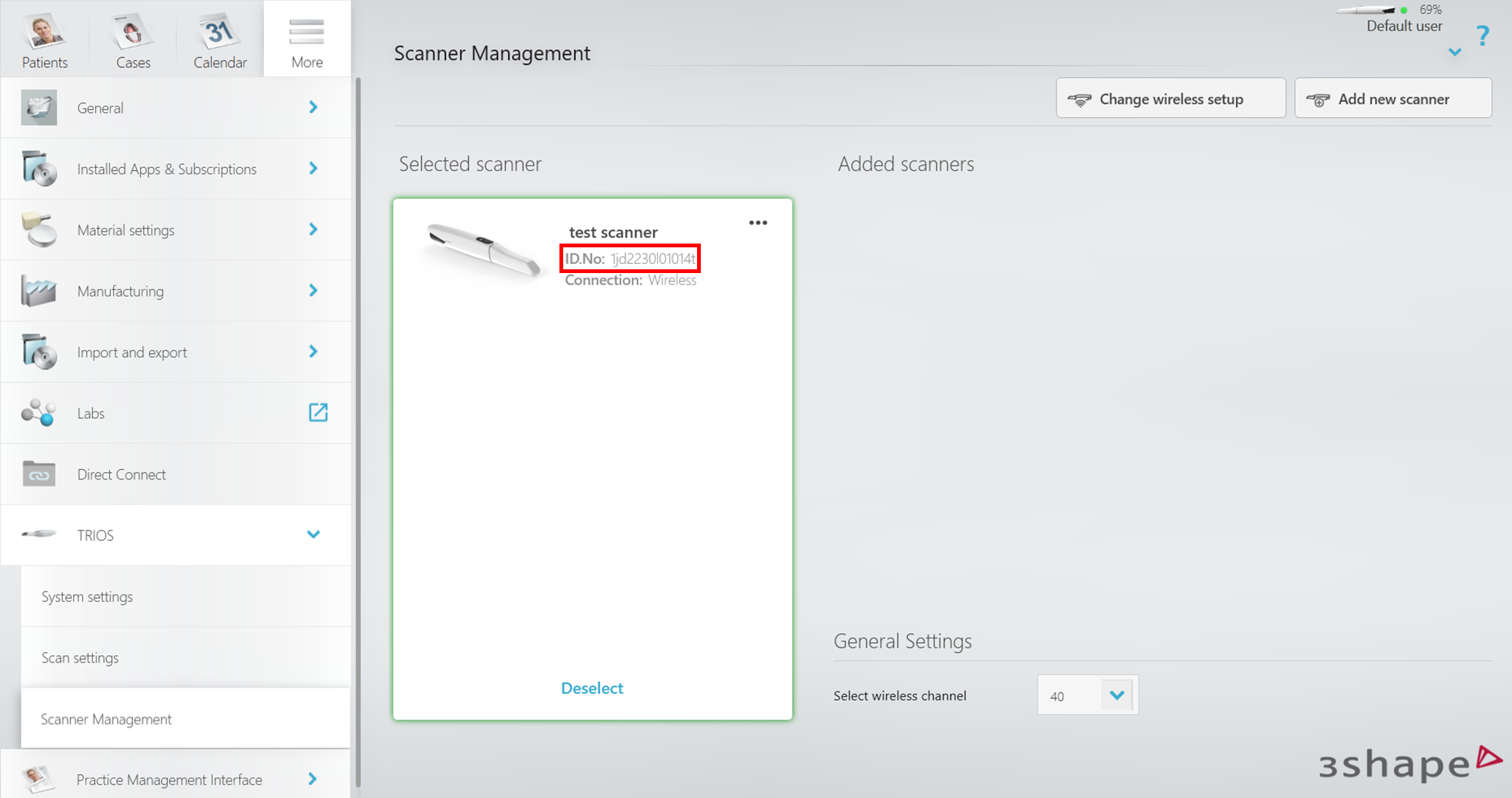
Note: It is recommended to forget the scanner if its serial number is not correct to prevent connection issues in the future. For this select the 3 dots option (Top-right corner on the wrong scanner) and select the option Forget Scanner.
Step 3: Verify the color of LED indicator on the scanner
- If it is TRIOS 5, refer to this article.
- If it is another wireless model, check whether the LED indicator on the back of the scanner is blue, green, or off.
- If the indicator is off, this is a hardware issue. Try changing the battery and if it is still off, contact 3Shape Support.
- Blue indicator means that the scanner is attempting to connect.
- Green indicator means that the scanner is properly connected.
Step 4: Check if 3Shape Wireless Service is running
- Open Windows services (Win + R -> services.msc -> Enter).
- Find 3Shape Wireless Service and start it. Make sure that Startup Type is set to Automatic.
- If the service is failing to start, reboot the system and try again.
Step 5: Use the recommended Wi-Fi channel
The recommended wireless channel for Windows PC is 40. Active channel can be checked in the software settings on the Scanner Management page. If a non-recommended channel is selected, try to set the recommended one and restart TRIOS software.
However, in some environments with a large amount of Wi-Fi networks other channels should be tried if the scanner is not connecting.
Step 6: Try a cross-check
- Try changing the USB port for the TP-Link.
- Try to connect the scanner to another PC if you have one.
Contact 3Shape Support if you have any further questions.
For full information on correct usage consult the official Safety and Setup Guide and the most current Manual.