How to archive and retrieve Dental System orders
Managing high volume orders in dental labs
Labs often deal with many orders that make it more complicated to operate. When the number exceeds 1000 orders, the information message appears:

To make the work more effective, it is possible to clean up the database or archive orders.
Before applying any of the solutions, it is mandatory to do the complete Dental System Backup including database and orders. To do so, follow the article How to create backup using Dental System installer.
For the Dental System versions up to 2019-1, you can:
Step 1: Go to DSCP
Step 2: Open Dental Manager
Step 3: Choose: General
Step 4: Click on “Automatically delete orders”
Archiving and deleting orders in Dental Manager
Step 1: Go to: Dental Manager, right click the order, chose “Advanced” and then “Export”.
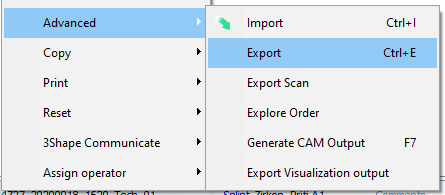
Step 2: Once the “Order Export” appears, select “Export 3Shape Complete order option" and choose “File”.

Step 3: Select the destination folder or external drive to store the compressed order.
Step 4: Once the order is archived, right click on it in Dental Manager and select Delete.
Steps to delete multiple 3Shape Orders:
Step 1: Go to the folder where your orders are saved (by default, orders are saved to an external drive to ensure they are backed up).
Step 2: Go to: Dental Manager and select number of orders to archive,
Step 3: Right click it and choose “delete”.
The selected orders will be deleted from both the orders folder and the database.
Retrieving archived dental orders for efficient workflow management
Step 1: Go to Dental Manager,
Step 2: Right click, select Advanced and choose “Import”.
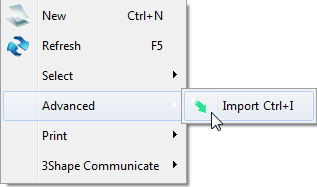
Step 3: Once the “Order import” appears, select “Import complete 3Shape order”

Step 4: Select the compressed file or xml from the destination folder.
Steps to retrieve multiple orders:
Step 1: Locate a backup of 3Shape Orders folder
Step 2: Go to Dental Manager
Step 3: Right click, choose “Advanced” and select “Import”
Step 4: Select “Choose Import multiple order option”

Step 5: Proceed to next screen and choose multiple required orders to import
Step 6: Click import.

It is also possible to hide orders to improve opening time of the Dental Manager by:
Step 1: Opening Dental System Control Panel and then General
Step 2: Select “Show limited number of orders”
Step 3: Choose number of visible orders.

Contact 3Shape Support if you have any further questions.
For full information on correct usage consult the official Safety and Setup Guide and the most current Manual.