How to use the My3Shape App
The My3shape app was created to improve communication between doctors and their patients by allowing doctors to send patient's their scans directly to their phone through the app.
Step 1: After scanning the patient, before sending the scans to the lab, you have the option to send the scans to their patient by clicking on the Send to Patient button (highlighted in yellow in the picture below).
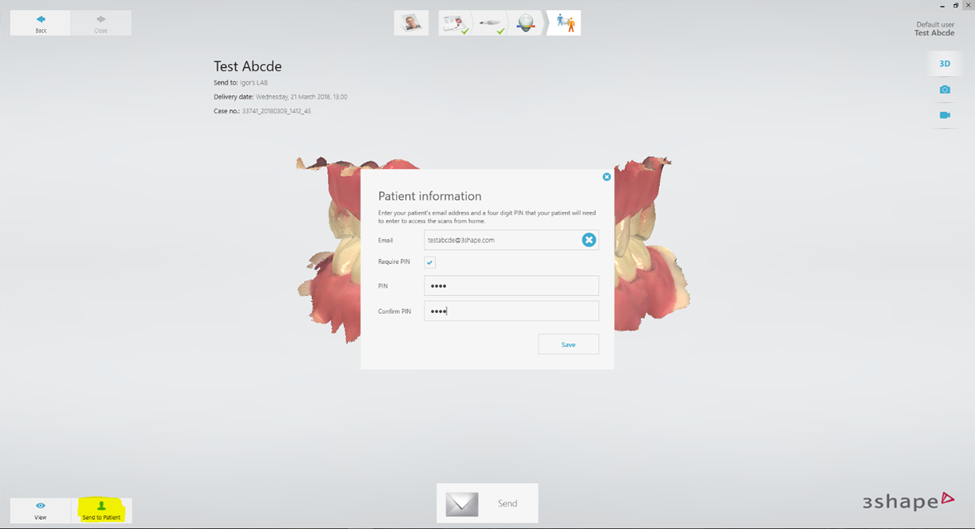
Step 2: Upon clicking on the Send to Patient button, a window will pop-up with the patient's information. Enter the patient's email if it was not filled in already when the patient was created. For added security a unique PIN (temporary code) can be created, however, this is optional.
Step 3: Click on the Save button and then send the case to the clinic/lab as usual.
Step 4: The patient will receive an email, instructing them to download the My3Shape app to their phone (IOS or Android).
Step 5: The Patient opens the My3Shape app on their phone and click on "Please sign up".
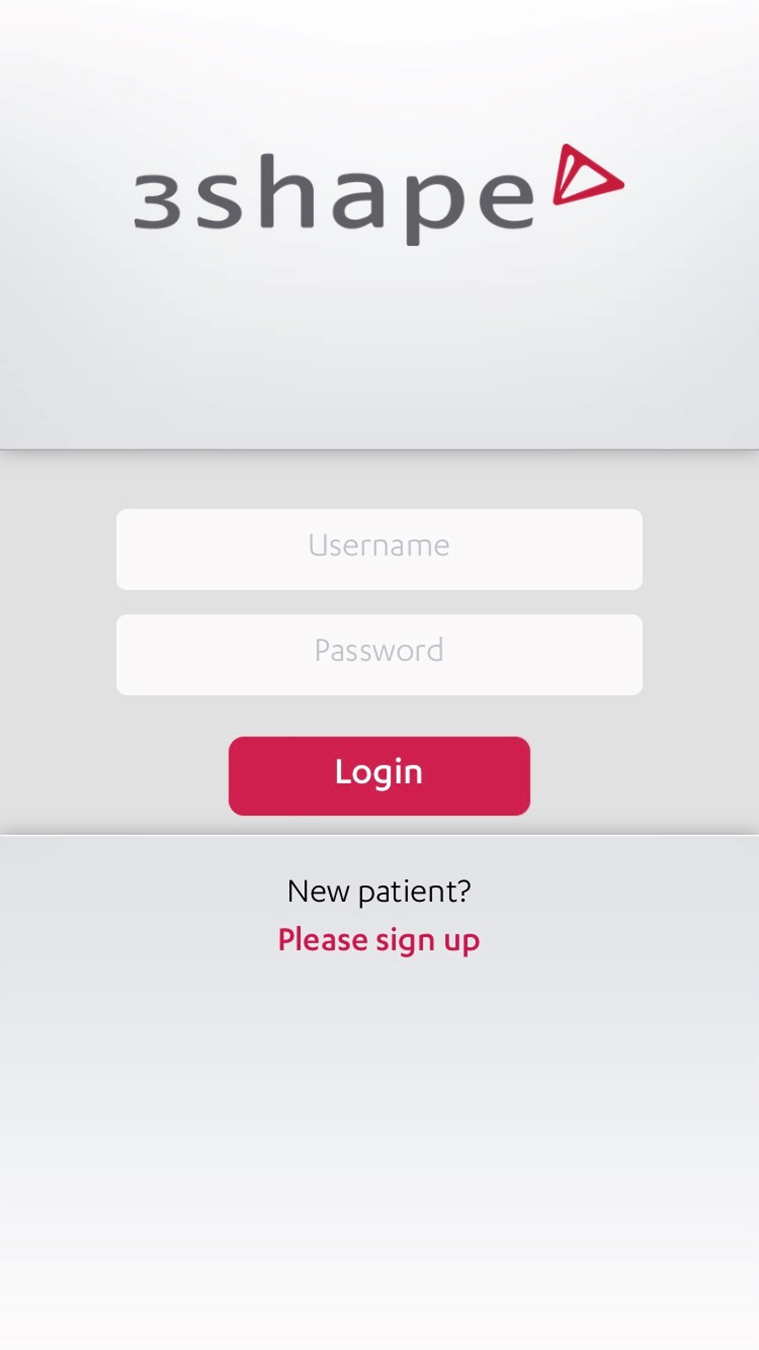
Step 6: The patient enters his/her email account, the PIN (if it was created by the doctor) and clicks on Continue.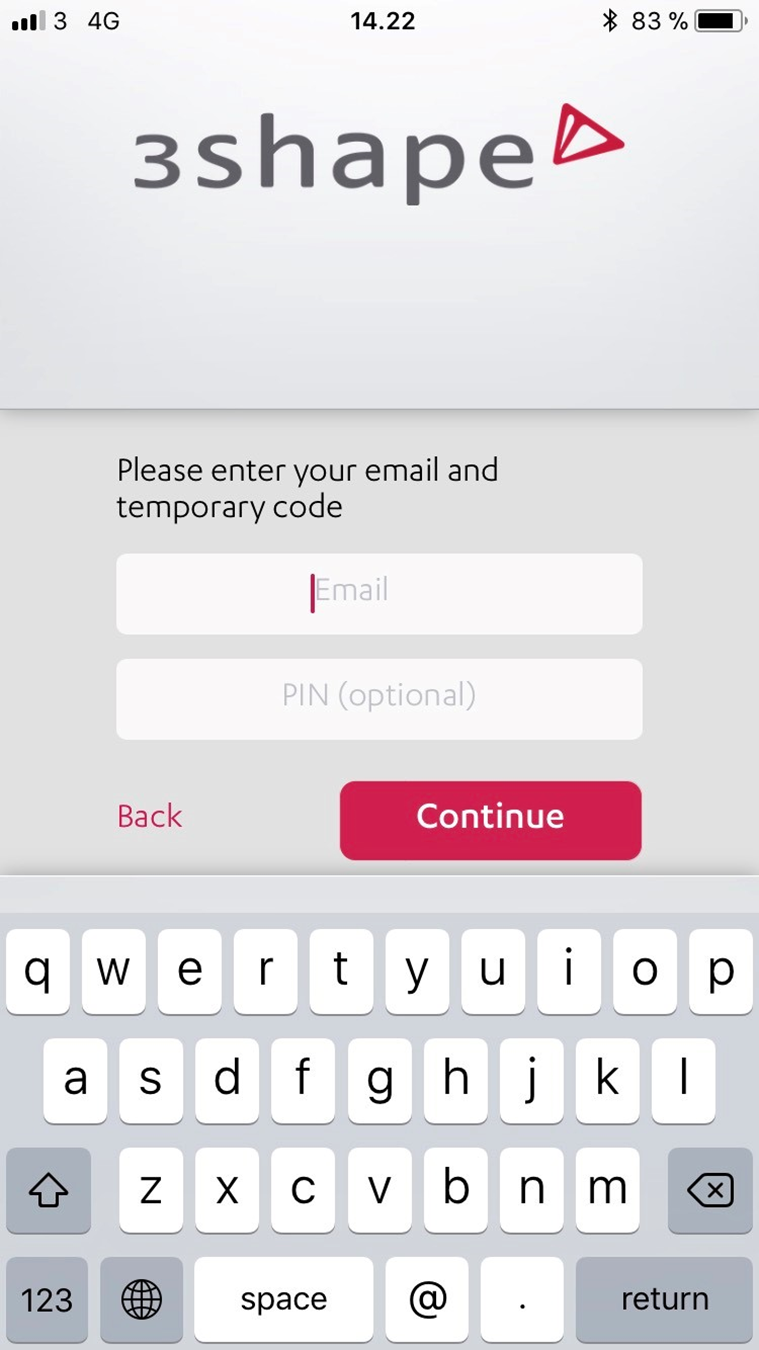
Step 7: The patient will be prompted to create a new password for themselves.
Step 8: The last scan done by the Doctor will be loaded. Once it is done loading the patient should be able to see their scanned models.