How to enable Dentally and Dentally Vision module integrations with 3Shape Unite
Prerequisites for the integration:
- 3Shape Unite 21.1.x or newer.
- Dentally Software Bridge and Dentally Image Bridge Chrome extension ver. 1.3.2 or newer.
- Dentally Software Bridge, Image Bridge Chrome extension and 3Shape Unite must be installed on the same computer.
- Both standalone and client-server setups are supported, see Known Limitations.
3Shape Unite and Dentally Software Bridge together with Bridge Chrome extension (PMS) provides automation of Patient Management in 3Shape Unite from (Create, merge, and update patient) and allows you to open TRIOS directly from the patient chart in for faster and easier scanning. Read more about Dentally Software Bridge here.
How to enable the integration in Unite
Please follow the steps described in the related article: How to install "PMS integration" App from Unite Store
How to enable the integration in Dentally Image Bridge
To setup integration from Dentally towards 3Shape Unite, Dentally Image Bridge Chrome extension and Software installer are required for the integration.
The following steps are provided as an aid to set up and use the integration for Dentally Software Bridge and Chrome extension.
For more information on accessing and Bridge Software setup please contact Dentally PMS provider via official website.
Dentally Software Bridge installer can be downloaded from the instructions here.
Chrome Bridge extension of the latest version can be downloaded from the Chrome Webstore link.
In order to setup integartion following steps should be performed :
1.Install the Dentally Imaging Bridge Chrome Extension.
2. Install the Dentally Software Bridge.
2.1 Run the installer and optionally indicate your Site ID.
2.2 Finish installation.
3. Configure the Google Chrome imaging bridge Chrome extension.
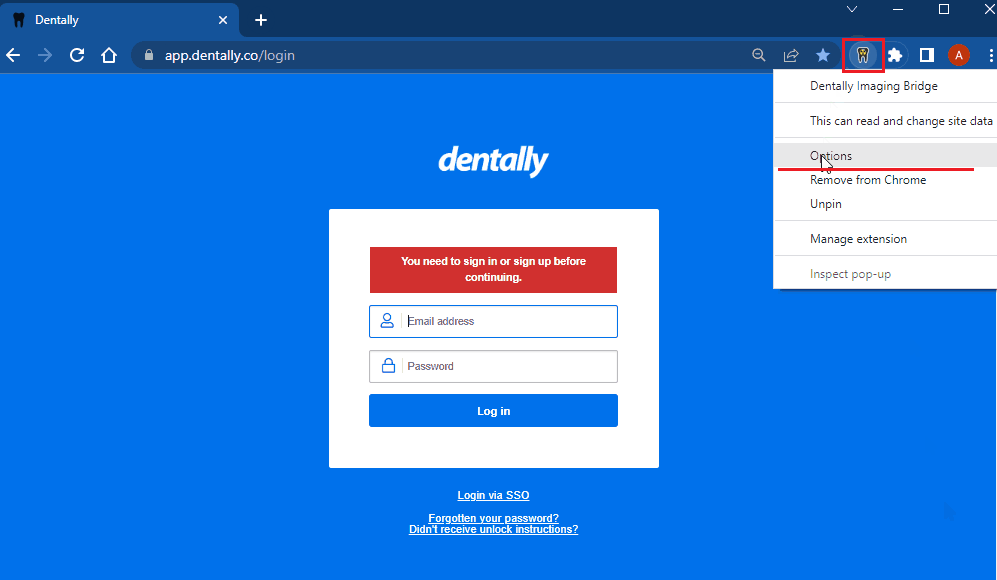
3.1. Right-click on the 'Dentally Imaging Bridge' extension icon on Chrome right after it was installed.
3.2. Click on ‘Options’ :
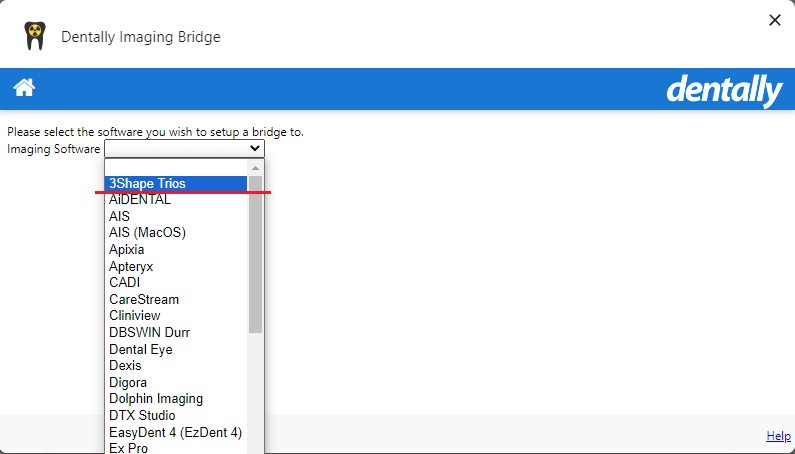
3.3. Choose '3Shape Trios' software from the drop-down list :
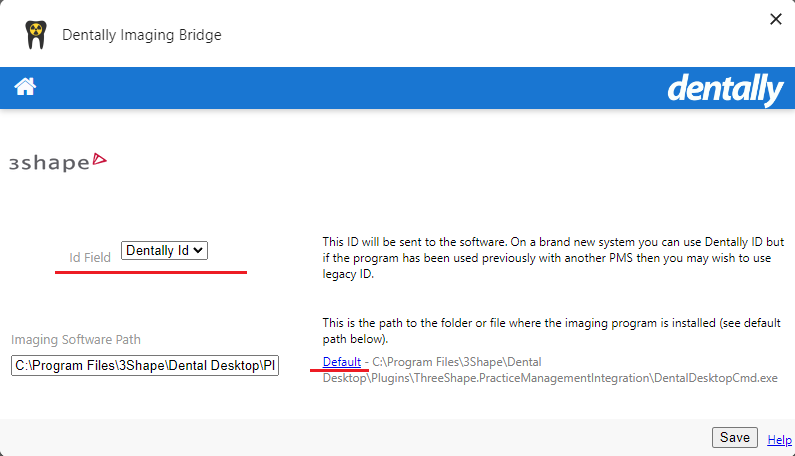
3.4. Set your ID field and Software path by clicking on ‘Default’ to insert execution link into ‘Imaging Software Path’ filed and Click ‘Save’ .
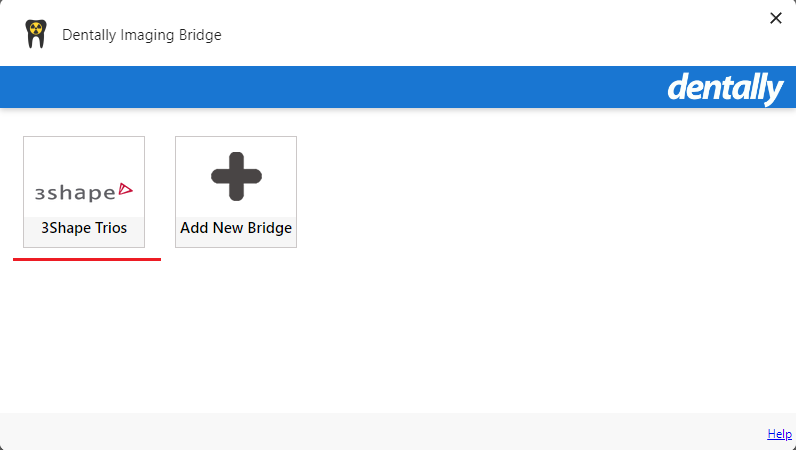
4. ‘3Shape Trios’ icon will appear as bridge configuring is finished to proceed on integartion usage:
As soon as you set the integration up, standard PMS integration workflows will be available:
Create Patient:
Update Patient:
Merge Patient:
How to enable the integration in Dentally Vision
Coming Soon: This feature will be available soon. Stay tuned for updates.
Starting with the integration between Dentally Vision and 3Shape Unite, customers can benefit from a closer connection between imaging and digital workflows.
One of the key benefits of this integration is the ability to access and work with TRIOS scans from 3Shape Unite directly within the Dentally Vision environment, helping streamline clinical workflows and improve access to digital scan data.
For the latest information and step-by-step instructions on how to enable and configure the integration, please refer to the Dentally Help Centre.
Acquisition agent configuration
1. Click the Acquisition Agent icon in the notification area of the Windows task bar, and then click Preferences.

2. The Preferences dialog box appears.

3. Click 3Shape Settings. And press Log In.

4. The Authorization dialog box appears. Sign in using the same 3Shape Account and Company that you use for 3Shape Unite.

Once the Dentally Vision bridge is functional, you can test it by acquiring scans from Unite software.
- Open 3Shape Unite, and log in.
- In the Standard list, click CAD/CAM Scan.
- In the Acquisition method for this imaging exam menu, click 3Shape Unite, and then click Start.

4. In Unite, click the Open Patient pop-up box.

5. Acquire images using Unite software.
The captured images appear in Dentally Vision automatically. Assign the scanned images to the correct slot, and then click Begin Uploading.

Known limitations:
- Regarding different PMS & Unite setup options and integration on Trios Move, check this article: Practice management system & Imaging system setup overview
- For now bite scan is not transferred from Unite to Dentally Vision.
- Patient updates are only propagated from Dentally Software Bridge to 3Shape Unite. Not the other way around.
Need Help?
If you experience any issues while establishing the integration between 3Shape Unite and Dentally Vision, during the setup of the Acquisition Agent, or while using the integrated workflow, please use the appropriate support channel below:
- 3Shape Support
For questions related to 3Shape Unite, TRIOS, or the data exchange workflow between Unite and Dentrix, visit the 3Shape Support Portal. - Dentally Support & Documentation
For assistance with Dentally Vision, Acquisition Agent configuration, or Dentally-specific workflow setup, refer to the Dentally Support Page.