How to calibrate the touchscreen on your TRIOS MOVE or Cart
If there is an inaccurate touch response of the monitor on TRIOS Cart/MOVE/MOVE+, the touchscreen can be calibrated using 4-point or 16-point calibration. When recalibrating the touchscreen always start with a 4-point calibration, and then if the problem persists move on to a 16-point calibration.
4-Point Screen Calibration
Step 1: Open Unite/Dental Desktop. Сlick on the More tab, and then click Settings in the drop down menu. From there click TRIOS, and select System settings in the drop down menu. Select Screen calibration.
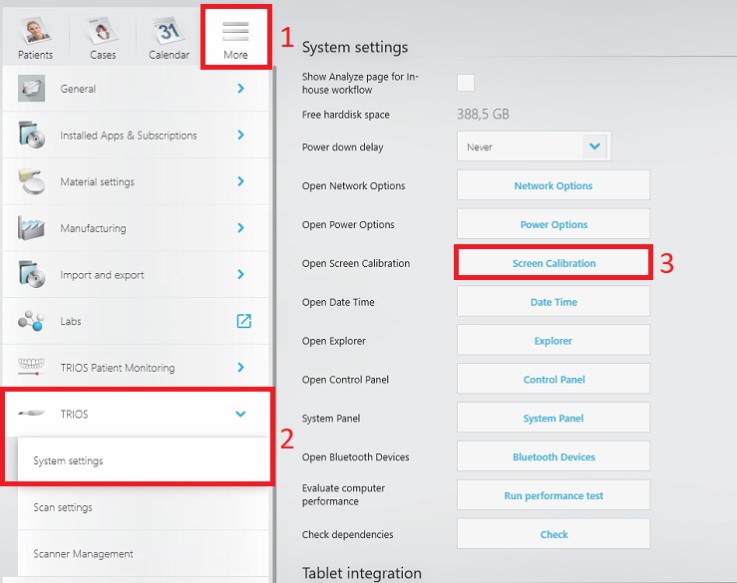
Step 2: The calibration white screen will appear. Follow the instructions on the screen and tap the crosshair each time that it appears on the screen.
Step 3: There will be a pop-up message once the calibration is finished. Click Yes to save the calibration data.
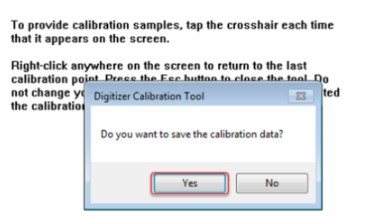
Step 4: The touch response should now be accurate. If not, proceed to the 16-point screen calibration.
16-point Screen Calibration
16-point calibration should be done if the touchscreen problem is still present after the 4-point calibration.
Step 1: Open Unite/Dental Desktop. Сlick on the More tab, and then click Settings in the drop down menu click. From there click TRIOS, and select System settings in the drop down menu. Select Control Panel.
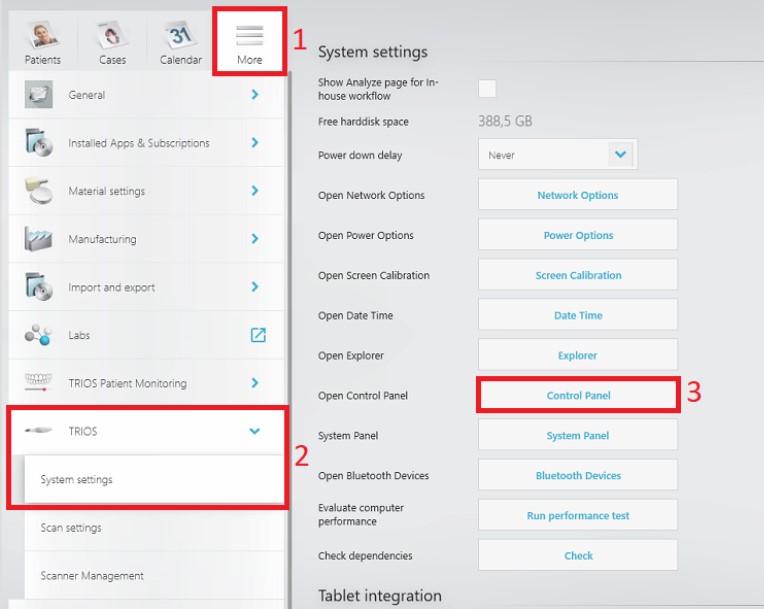
Step 2: Locate and click on Tablet PC Settings. If you cannot see Tablet PC Settings make sure View by: is set to Large icons or Small icons.

Step 3: Click Reset.
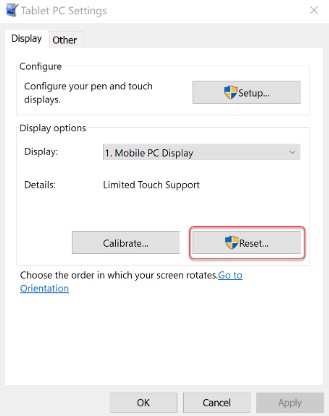
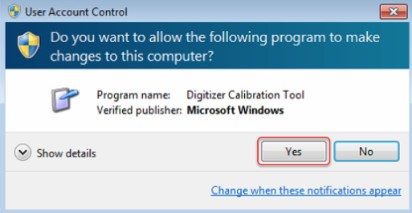
Step 4: If the User Access Control window pops up, click Yes to continue:
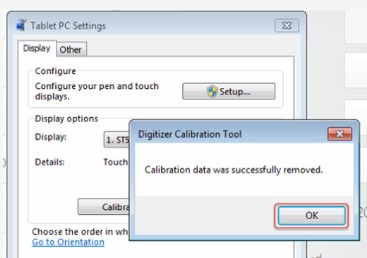
Step 5: Notification that the calibration data has been removed will appear, click OK.
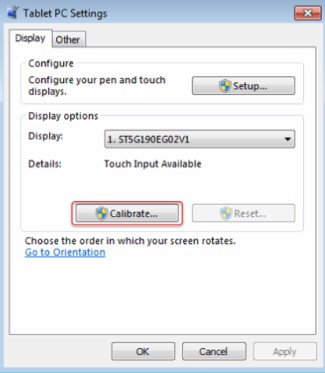
Step 6: Click Calibrate.
Step 7: If the User Access Control window pops-up again, click Yes.
Step 8: The calibration white screen will appear. Follow the instructions on the screen and tap the crosshair each time that it appears on the screen. This time it will be 4 points in each corner.
Step 9: There will be a pop-up message once the calibration is finished. Click Yes to save the calibration data.

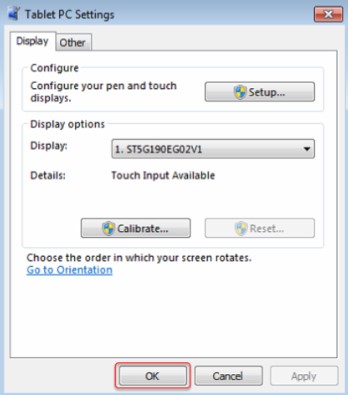
Step 10: Click OK in the Tablet PC Settings window to close it; close the Control Panel window as well to return to the software.
Contact 3Shape Support if you have any further questions.
For full information on correct usage consult the official Safety and Setup Guide and the most current Manual.