AngelAlign (iOrtho) - 3Shape Unite integration guide
How to install Angel Align App
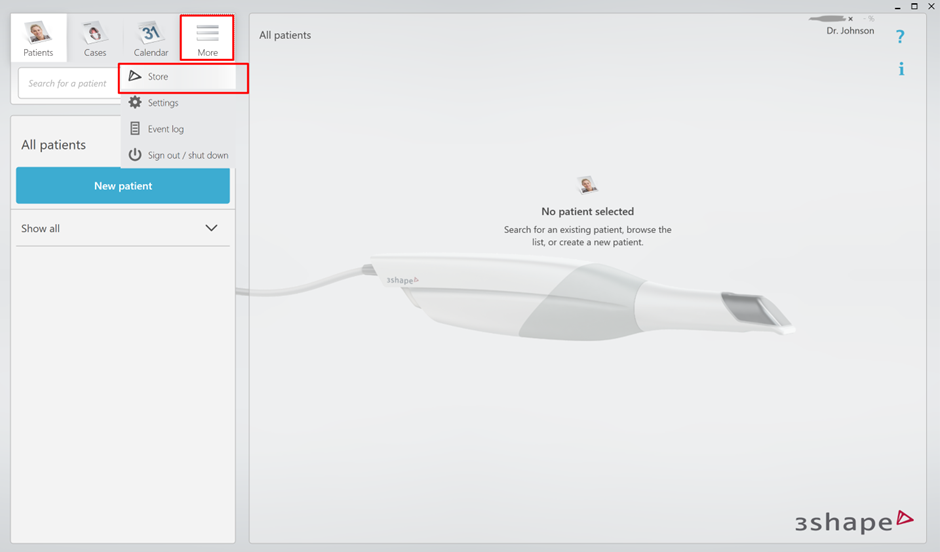
Step 1: Open 3Shape Unite and open the Unite Store. Select More, then Store.
Step 2: Enter Angel Align in the search field.

Step 3: Select Install.

Step 4: When the pop-up window appears, select Connect.

Step 5: To complete the pairing process, continue to the Angel Align website.
How to finish Pairing process on Angel Align
Step 1: Log in to iOrtho using your credentials. Select Login.

Step 2: Select Make it in the top-left corner of the screen.

Step 3: Select Add/新建.

Step 4: On the Add Make it / 新建快速⽬标位 page, select 3Shape.

Step 5: Log in using your 3Shape Communicate account and select Next /下⼀步.

After pairing your Communicate account, you can send a case from 3Shape Unite.
Create and Send case to Angel Align
Step 1: Open the Patients tab in the upper-left corner of 3Shape Unite.
Step 2: Create a new patient or select an existing patient.

Step 3: Once the patient is created, a new window appears.
Step 4: Under the Scan & Send menu, select Angel Align Tech.

Step 5: Select the restoration type in the Order Form and select Save.

Step 6: Perform TRIOS scans of the lower and upper jaws, as well as a bite scan.

Step 7: Select the delivery date and select Send.

Proceed with the workflow on Angel Align (iOrtho Portal)
Once the case is sent to AngelAlign, the STL files are available directly on the iOrtho platform.
Step 1: Select the corresponding patient from the list.
Step 2: Submit the files to AngelAlign.

Step 3: Continue with the order and treatment plan in the AngelAlign Portal.
Contact 3Shape Support if you have further questions.
For full information on correct usage please consult the official Safety and Setup Guide and the most current Manual.