How to enable DTX Studio integration with 3Shape Unite
Prerequisites for the integration
- 3Shape Unite 21.1.x or newer is installed.
- DTX Studio Clinic 1.8.12 or higher and DTX Studio Core 3.9.11 or higher.
DTX Studio Clinic is equivalent to the 3Shape Unite Client, and DTX Studio Core is equivalent to the 3Shape Unite Server.
Lan network
For the integration to work, the following applications must run on the same LAN network:
- DTX Studio Core
- DTX Studio Clinic
- 3Shape Unite Server
- 3Shape Unite Clients
A 3Shape Full Setup is recommended. Contact the person who configured your 3Shape products to confirm that you have a Full Setup.
Network ports
- The general port used by the integration is 5484.
- DTX Studio client-server installations also use additional ports. The default port is 33000.
Check with your local IT specialist whether these ports have been modified.
Workflow update starting from Unite 24.1 and higher
Starting from Unite version 24.1 (1.7.85.0), the case creation logic for DTX has been updated. When a case is initiated in DTX Studio, it is created in Unite in the ScanOnly state. This means:
- No order form is available.
- The case is marked as InHouse.
- Indications cannot be used.
This behavior is related to changes in Unite, where cases must be specifically configured to allow scanning. Restricting a case to scanning only would limit its use for other purposes or workflows.
The updated case creation logic ensures that 3Shape cases look and behave similarly to ScanOnly cases created from the Action bar in Unite.
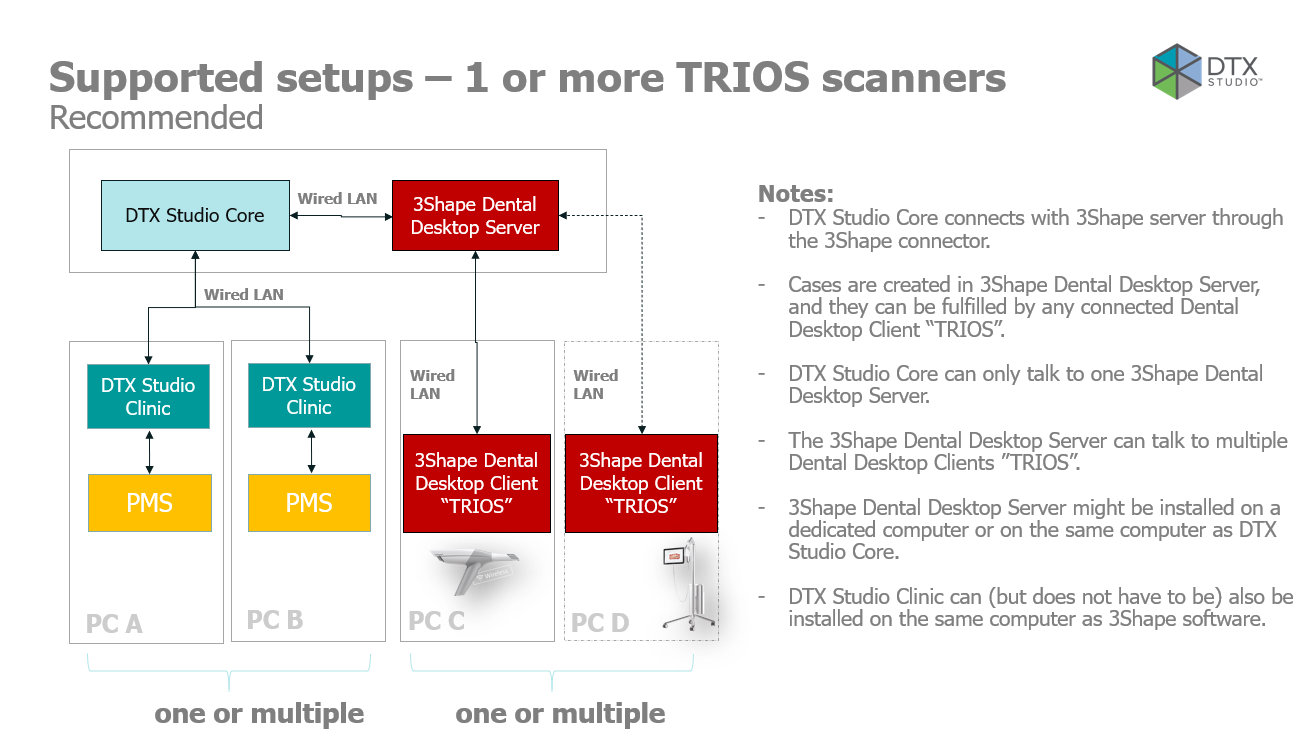
About the integration
The 3Shape Unite and DTX Studio integration enables DTX Studio to initiate scan capture with TRIOS and transfer the scans back to DTX Studio. The integration requires configuration in both 3Shape Unite and DTX Studio.
Read more about DTX Studio.
How to enable the integration
For a detailed guide, see the DTX Studio Video Guide.
Step 1: Check the prerequisites listed above. Update your dongle and 3Shape Unite if needed.
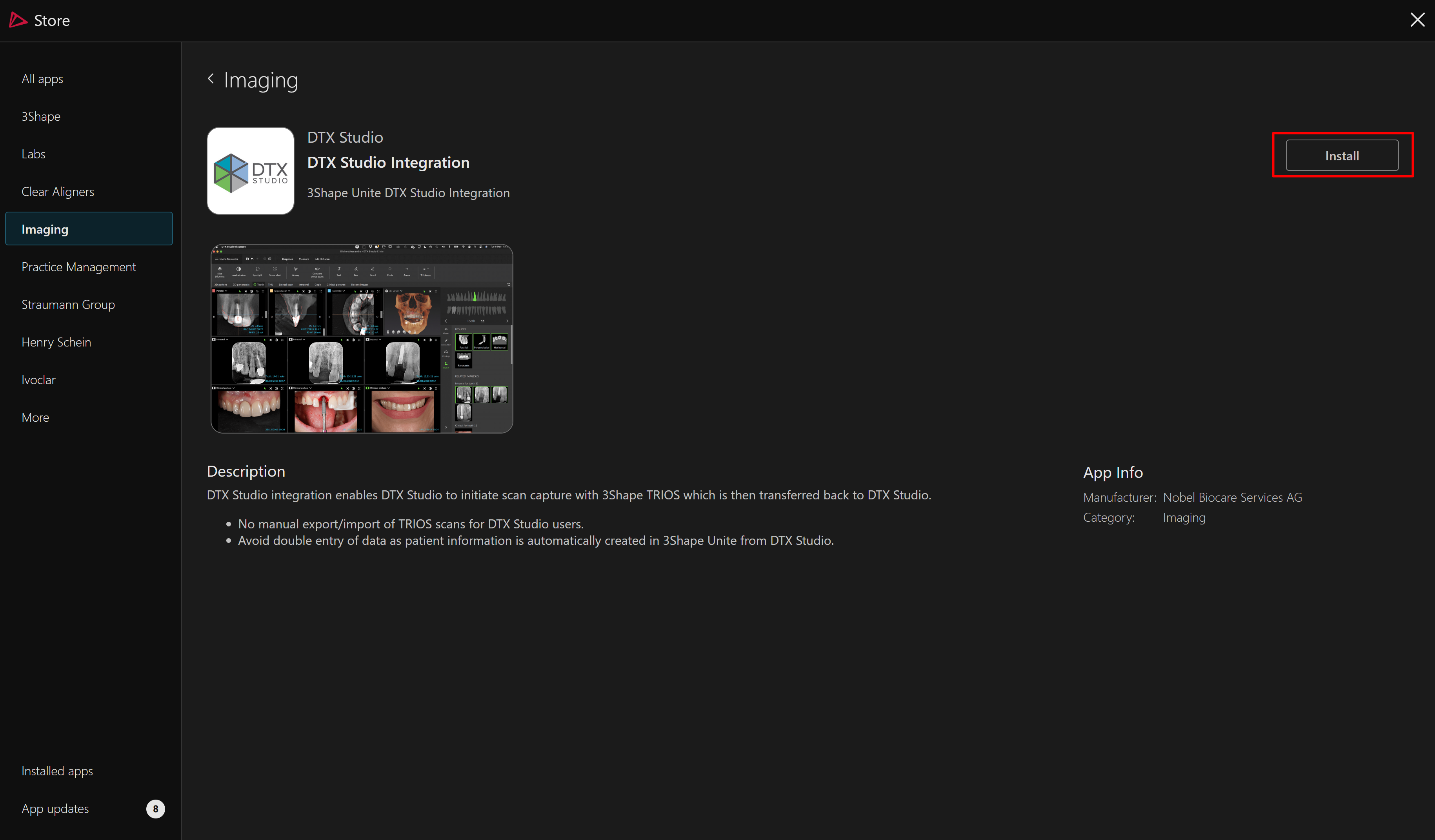
Step 2: Open the 3Shape Unite Store.
Step 3: Select Imaging systems and find DTX Studio.
Step 4: Select Install.
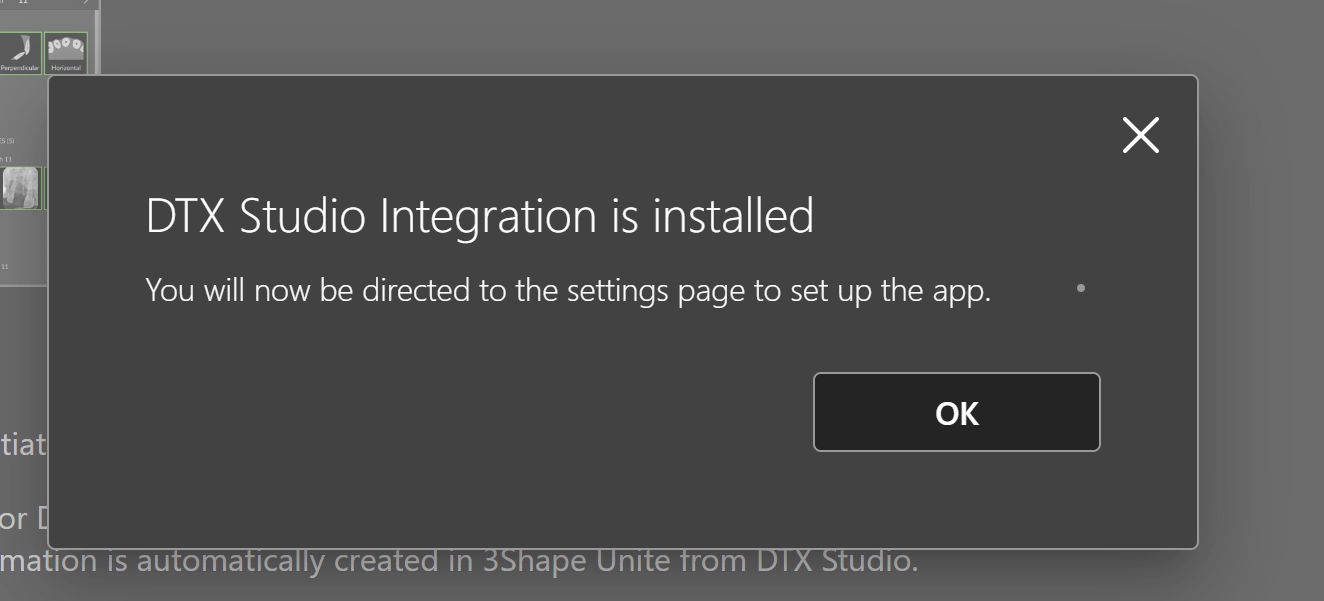
Step 5: In the pop-up window, select OK. You will be redirected to the settings page.
Step 6: In the integration setup window, select the checkbox next to Integration to start pairing.

You have 30 minutes to open DTX Studio Core and complete the integration.
Step 7: Open DTX Studio Core.
Step 8: Select Devices.
Step 9: Select 3Shape Intraoral Scanner.
Step 10: Select Complete Pairing.

Once pairing is complete, the corresponding statuses will appear in DTX Studio Core and 3Shape Unite.


Step 11: Once the connection has been established, exit Settings in 3Shape Unite to save the changes.
Initiating TRIOS scan capture in DTX Studio Clinic
Refer to the DTX Studio documentation for instructions on how to initiate TRIOS capture scan requests in DTX Studio Clinic using the integration.
You have now set up the integration. You can see it working in the video below.
Related Reading
For IT Specialists, see Network Connections for Unite.
Known error
If you see the following error message in the Device Details section of DTX Studio Core:
Something went wrong contacting 3Shape Dental System
Contact DTX Support for assistance.

Contact 3Shape Support if you have any further questions.
For full information on correct usage consult the official Safety and Setup Guide and the most current Manual.